IPTV Installation Guide for Beginners
A good IPTV installation starts with the correct device, a supported player, confirmed access information, and a troubleshooting path.
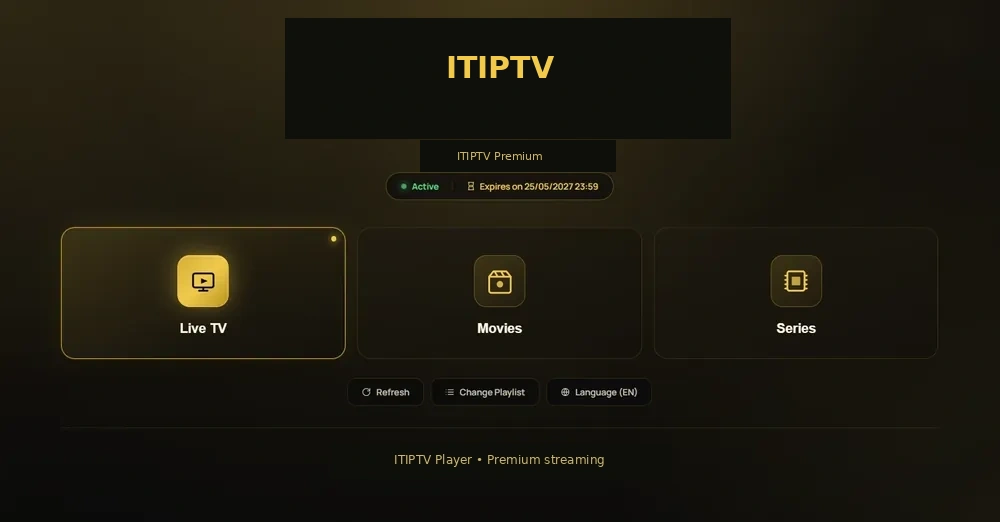
Prepare before you install
Successful IPTV installation starts with a supported device, a compatible player, a working network, and accurate access information. Identify your device before ordering. If you are unsure whether it is supported, send ITIPTV the model and operating system on WhatsApp.
- Check the device model and software version.
- Use the official app store or the installation source approved for your setup.
- Keep the order email and plan details available.
- Do not post credentials publicly.
- Ask about the available payment methods before sending payment.
Choose a device guide
Smart TV
Samsung, LG, and Android TV compatibility.
Smart TV guideFirestick
Fire TV app-store and player workflow.
Firestick guideAndroid
Android TV and Google TV devices. Other Android devices require separate confirmation.
Android guideApple TV
Apple TV setup. Other Apple mobile devices require separate confirmation.
Apple guideTroubleshooting
Buffering, login, EPG, and playback checks.
TroubleshootingWhatsApp support
Send your device, player, plan, and error.
Contact supportThree stages of an ITIPTV order
1. Select and ask
Choose the duration and number of connections. The pricing CTA opens WhatsApp with the plan and displayed price. ITIPTV confirms currently available payment instructions.
2. Confirm and receive setup information
After the customer confirms the order and payment through the agreed method, ITIPTV follows its real activation process and supplies the setup information through the verified support channel.
3. Install and test
Install the supported player, enter the access information, and test one live category and one on-demand category. Keep the exact error and device details if support is needed.
Other devices
A computer setup still depends on a supported player and access method. Use a reputable player, keep the operating system updated, and confirm whether the service expects a particular format before ordering.
Common installation problems
Typical problems include installing the wrong player, entering an access field with an extra space, using an unsupported device, or testing while the network is under heavy load. Work through the troubleshooting guide before contacting support.
Device-specific overview
Smart TV
Check the exact model, operating system, app store, and supported player. Samsung and LG pages cover the most important platform differences.
Firestick
Use the official app store where the player is available, check storage, and keep the Fire TV updated.
Android TV
Confirm the Android TV or Google TV version, player source, and exact model before ordering.
Apple TV
Use the App Store player and confirm the tvOS version and login method before ordering.
Other devices
Windows, Mac, phones, tablets, and other devices are not in the currently confirmed device list. Ask ITIPTV on WhatsApp before ordering if you want to use another device.
Protect the setup information
Keep credentials in a private place and do not forward them to people outside the order. ITIPTV should not ask for a customer’s device, account, or email password. If access needs to be reset, use the verified support conversation.
After the first install
Test one live category, one on-demand title if applicable, guide data, audio, and the player controls you plan to use. Record the device, player, and any error. This makes the troubleshooting process much quicker.
Player choice and setup information
An IPTV player is the application that displays the service. Different players may request different information, such as a username/password, a URL, a code, or a playlist. Do not guess which field to use. Ask ITIPTV which method belongs to your device and wait for the verified activation message.
If a player offers advanced options for decoder, buffer, audio, or guide data, leave them at the default until basic playback is working. A stable baseline is easier to troubleshoot than a setup with several unknown changes.
Testing the first session
- Open one live category and let it play for a short period.
- Move through the player menu and confirm the remote or touch controls.
- Refresh guide information if the feature is available.
- Test an on-demand title only when that category is included in the current service.
- Write down the player version and device for future support.