How to Set Up IPTV on Apple TV
Apple devices use App Store players and their own settings.
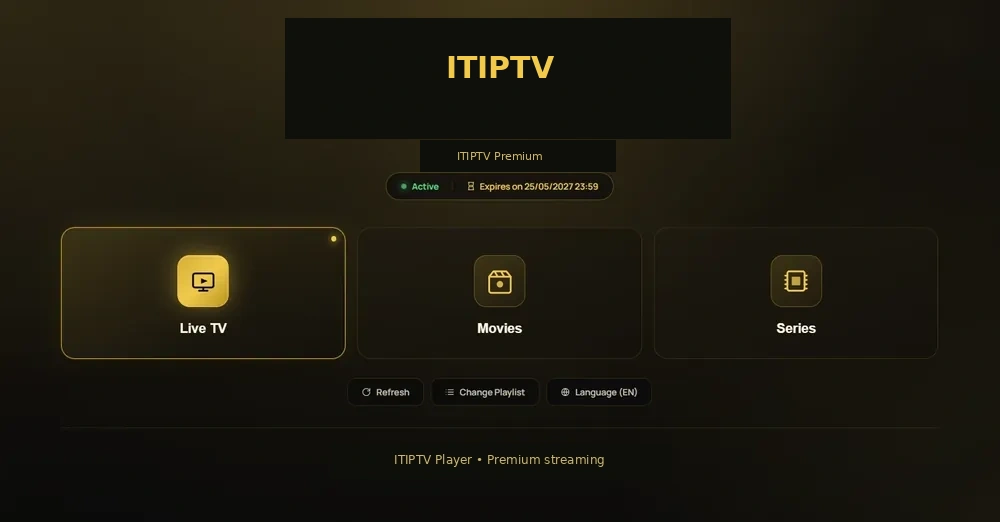
Understand the Apple environment
Apple TV uses App Store players and device settings that differ from Smart TV or Android. The Apple TV model, tvOS version, player availability, and login method should be confirmed before ordering. Other Apple mobile devices require separate confirmation.
What you need
- An Apple device connected to the intended network.
- Access to the official App Store.
- The player supported by the current ITIPTV setup.
- Order email and access information supplied after confirmation.
- Basic knowledge of restarting the player and device.
Apple TV setup path
- Open the App Store on Apple TV.
- Install the approved player.
- Choose the login method ITIPTV provides.
- Enter the access information exactly.
- Refresh the catalogue and test playback.
On mobile Apple devices that require separate confirmation, use the same approach but confirm that the player supports the current mobile version.
Playback troubleshooting
Update the player and device software, restart the device, check the network, and confirm the Apple account is working. If the player opens but one title or category fails, record that title for support. Never send an Apple password to ITIPTV.
Related Apple and installation guides
Continue with IPTV installation, review movies and series, or ask WhatsApp support about the current player.
App Store and account considerations
Apple TV and iOS players are installed through the App Store, and their interfaces may not expose the same fields as Android or Smart TV players. Confirm the app version and login method before ordering. Keep your Apple account separate from the IPTV access information.
Network and playback
Restart the player and Apple device, test the connection, and compare a live category with an on-demand title. If the problem occurs only on one device, send its model and software version to support.
Related guides
Read the Apple device hub, movies and series guidance, and playback fixes.
Apple TV versus mobile playback
Apple TV uses a remote and television interface, while mobile Apple devices that require separate confirmation use touch controls. Confirm that the player and access method work on the device you intend to use. Player updates can change the layout.
Network and account checks
Confirm the Apple device is on the intended Wi-Fi, the App Store account can install the player, and the software is current. Restart before changing account settings. Send ITIPTV the Apple model, player, and error; never send an Apple ID password.
Related: Apple device hub, movies and series, and playback fixes.
Player availability matters
App Store availability can vary by device version and region. A player that appears in a setup video may not be available on your Apple TV version. Confirm the current player before ordering and avoid changing your Apple account region solely for an IPTV app.
Testing a mobile connection
If you want to use an Apple mobile device, ask ITIPTV to confirm current support before ordering. Mobile networks can change with location and congestion.
Related topics
Read playback problems, movies and entertainment, and installation.